Thursday, February 12, 2015
Oracle Forms Builder 11g R2 on Oracle Linux 6
If you want to run the Forms Builder utility (by executing the $INSTANCE_HOME/bin/frmbld.sh script) on your Oracle Linux 6 system, it is possible that you receive this error:
#
# A fatal error has been detected by the Java Runtime Environment:
#
# SIGSEGV (0xb) at pc=0x00007fb7d0b1c2c3, pid=11590, tid=140427416176448
#
# JRE version: 6.0_35-b10
# Java VM: Java HotSpot(TM) 64-Bit Server VM (20.10-b01 mixed mode linux-amd64 compressed oops)
# Problematic frame:
# C [libclntsh.so.11.1+0xee72c3] __intel_new_memcpy+0x14e3
#
# An error report file with more information is saved as:
# /opt/oracle/Oracle/Middleware/asinst_1/bin/hs_err_pid11590.log
#
# If you would like to submit a bug report, please visit:
# http://java.sun.com/webapps/bugreport/crash.jsp
# The crash happened outside the Java Virtual Machine in native code.
# See problematic frame for where to report the bug.
#
That's because you forgot something during your OS preparation.
In fact, you have to set the NLS_LANG environment variable for your user, e.g. in the .bash_profile file:
export NLS_LANG=AMERICAN_AMERICA.WE8ISO8859P15
When you have this variable, you can run Forms Builder without any problem!

Wednesday, February 4, 2015
Oracle FMW 11g R2 and JDK 7 : solving OHS error in EM
Installing the OHS-component as part of Forms and/or Reports 11g R2, based on JDK 7, gives the following error in the EM, when you try to navigate to it:
Failed to invoke operation load on MBean ...

The error itself seems to be very terrible, but don't worry, you can easily solve it.
You just have to doe the following:
(1) Shutdown your OHS-component.
(2) Go to the admin.conf file located in the <<INSTANCE_HOME>>/config/OHS/<<ohs_component>> and just change this line:
SSLProtocol nzos_Version_3_0
to
SSLProtocol nzos_Version_1_0 nzos_Version_3_0
(3) Start again your OHS-component.
This error occurs both on Linux and Windows Operating Systems, the cause of the error is JDK 7, because it does not occur with earlier versions of Java.
Failed to invoke operation load on MBean ...

The error itself seems to be very terrible, but don't worry, you can easily solve it.
You just have to doe the following:
(1) Shutdown your OHS-component.
(2) Go to the admin.conf file located in the <<INSTANCE_HOME>>/config/OHS/<<ohs_component>> and just change this line:
SSLProtocol nzos_Version_3_0
to
SSLProtocol nzos_Version_1_0 nzos_Version_3_0
(3) Start again your OHS-component.
This error occurs both on Linux and Windows Operating Systems, the cause of the error is JDK 7, because it does not occur with earlier versions of Java.
Generated LOV-buttons in Forms
When using LOV's in your form, you would like to indicate the end users which text fields are linked with an LOV.
When you are positioned into such a text field, you can see at the status bar of the applet that the field is linked with an LOV:

To make your form more user friendly, you can add a push button with a nice icon, but you can also use automatically generated LOV-buttons. When you point the cursor in such a text field, you will see a small button with 3 dots:

It is very easy to implement this feature without doing changes in the source code of your form.
In the EM, you navigate to the Forms screen.
Next, in the "Forms" menu, you choose "Font and Icon Mapping" and you set the value for "app.ui.lovButtons" to "yes" (default = "no").

P.S.: this change will be recorded in the "registry.dat" file.
Restart your Forms server process and test the feature in your application!
When you are positioned into such a text field, you can see at the status bar of the applet that the field is linked with an LOV:

To make your form more user friendly, you can add a push button with a nice icon, but you can also use automatically generated LOV-buttons. When you point the cursor in such a text field, you will see a small button with 3 dots:
It is very easy to implement this feature without doing changes in the source code of your form.
In the EM, you navigate to the Forms screen.
Next, in the "Forms" menu, you choose "Font and Icon Mapping" and you set the value for "app.ui.lovButtons" to "yes" (default = "no").

P.S.: this change will be recorded in the "registry.dat" file.
Restart your Forms server process and test the feature in your application!
Automatic startup of WLS servers when booting Linux
On the My Oracle Support website you can find the article "RC Initialization Scripts for Starting and Stopping WebLogic Server as a UNIX Daemon [ID 877902.1]".
Here in this post, I will describe an alternative method.
I tested out on a Oracle Linux 6 host machine.
These are the steps that must/can be performed:
(1)
Create for each server within your domain a boot.properties file (My Oracle Support: "How to Start a WebLogic 10.3.x Domain AdminServer Without Interactively Supplying the Username / Password? [ID 980292.1]").
(2)
Login as root
(3)
Navigate to /etc/init.d and create a file wls with this content:
(4)
In a terminal window, execute these commands:
Here in this post, I will describe an alternative method.
I tested out on a Oracle Linux 6 host machine.
These are the steps that must/can be performed:
(1)
Create for each server within your domain a boot.properties file (My Oracle Support: "How to Start a WebLogic 10.3.x Domain AdminServer Without Interactively Supplying the Username / Password? [ID 980292.1]").
(2)
Login as root
(3)
Navigate to /etc/init.d and create a file wls with this content:
#!/bin/bash
#
# oracle Init file for starting and stopping WLS
#
# chkconfig: 35 80 30
# description: Oracle WLS startup script
# Source function library

. /etc/rc.d/init.d/functions

ORACLE_OWNER="oracle"
DOMAIN_HOME="/opt/oracle/Oracle/Middleware/user_projects/domains/dev_domain"

case "$1" in
start)
echo -n $"Starting WLS:"
su - $ORACLE_OWNER -c "$DOMAIN_HOME/bin/startWebLogic.sh > /dev/null 2>&1 &"
su - $ORACLE_OWNER -c "$DOMAIN_HOME/bin/startManagedWebLogic.sh ManagedServer1 > /dev/null 2>&1 &"
su - $ORACLE_OWNER -c "$DOMAIN_HOME/bin/startManagedWebLogic.sh ManagedServer2 > /dev/null 2>&1 &"
echo "OK"
;;
stop)
echo -n $"Stopping WLS:"
su - $ORACLE_OWNER -c "$DOMAIN_HOME/bin/stopManagedWebLogic.sh ManagedServer1"
su - $ORACLE_OWNER -c "$DOMAIN_HOME/bin/stopManagedWebLogic.sh ManagedServer2"
su - $ORACLE_OWNER -c "$DOMAIN_HOME/bin/stopWebLogic.sh"
echo "OK"
;;
*)
echo $"Usage: $0 {start|stop}"
esac
(4)
In a terminal window, execute these commands:
chmod 750 /etc/init.d/wls
chkconfig --add wls --level 0356
Thursday, January 29, 2015
Types of Data Sources
When you create a data source, you have 3 different types of data sources. It is not always clear which type you can use in relation to your license. Additionally, Oracle makes it just a little bit more obscure by using different namings in the WebLogic Console and the documentation.
Here are the 3 types you can choose in the WebLogic Console:
Generic Data Source
This is the basic type you can use to make a JDBC connection to a single database.
You can use this option in all the license levels: Standard, Enterprise and Suite.
Multi Data Source
Also known as "GridLink for RAC".
If your WebLogic Server is running on an underlying RAC database architecture, you can choose to use multi data sources. A multi data source is a combination of several generic data sources. First you have to create the generic data sources seperately and afterwards you can combine them in a multi data source, based on a algorithm type: Failover or Load-Balancing.
You can use this option in all the license levels: Standard, Enterprise and Suite.
GridLink Data Source
Also known as "Active GridLink for RAC".
Here, the JDBC info of your RAC is stored directly in the data source.
In fact it is a combination of the previous types:
* like the generic data source, the JDBC info is stored directly in the data source.
* like the multi data source, you can reach mutiple database nodes.
In this concept, the advantages of the RAC features are better used in your WebLogic architecture.
You can use this option only in the highest license level: Suite.
Here are the 3 types you can choose in the WebLogic Console:
Generic Data Source
This is the basic type you can use to make a JDBC connection to a single database.
You can use this option in all the license levels: Standard, Enterprise and Suite.
Multi Data Source
Also known as "GridLink for RAC".
If your WebLogic Server is running on an underlying RAC database architecture, you can choose to use multi data sources. A multi data source is a combination of several generic data sources. First you have to create the generic data sources seperately and afterwards you can combine them in a multi data source, based on a algorithm type: Failover or Load-Balancing.
You can use this option in all the license levels: Standard, Enterprise and Suite.
GridLink Data Source
Also known as "Active GridLink for RAC".
Here, the JDBC info of your RAC is stored directly in the data source.
In fact it is a combination of the previous types:
* like the generic data source, the JDBC info is stored directly in the data source.
* like the multi data source, you can reach mutiple database nodes.
In this concept, the advantages of the RAC features are better used in your WebLogic architecture.
You can use this option only in the highest license level: Suite.
Modifying / Extending the WebLogic Server Administration Console
Case
You manage multiple development, test and production domains through their particular Administration Console. Although you defined all your domains in production mode, you notice that sometimes you make changes in the wrong console (e.g. development changes in a production environment) because of time pressure and a lack of attention by yourself. Oops... Well, another nice advice is to implement console extensions in your Administration Console, e.g. especially for the real production environments.
Solution
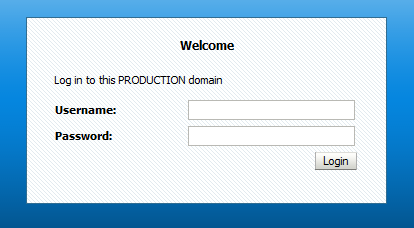
You can change the login page and some colors in the console itself to accentuate the production environment.
I tested this out on a Windows Server 2008 machine.
Normally, when you navigate to your Administration Console, you see this screen:

In the console itself, you have always a light blue toolbar (Home | Log Out | Preferences | ...) and after executing an action, you see thereunder a light gray message box:

Now, we will change a bit this layout.
(1)
Open a MS-DOS session and execute the setDomainEnv.cmd script from your domain.
(2)
Go to the templates directory for the console extensions:
cd %WL_HOME%\server\lib\console-ext\templates
Here, you will normally find 2 files:
build-new-laf.xml
laftemplate.zip
Execute this command to create an exploded format of your console extensions war-file:
ant -f build-new-laf.xml -Dname=myConsoleExt -Ddir=C:\myConsoleExt
(3)
In the WEB-INF subdirectory, create a classes directory, go to this new directory and create global.properties file by executing this command:
jar -xf %WL_HOME%\server\lib\consoleapp\webapp\WEB-INF\lib\console.jar global.properties
(4)
When you open this file in a text editor, you can see here all the labels, titles etc that are displayed in the console.
For the login page, for example, we want to change the subtitle of the login box from "Log in to work with the WebLogic Server domain" to "Log in to this PRODUCTION domain".
In the global.properties locate this line:
login.welcome2=Log in to work with the WebLogic Server domain
And change it to:
login.welcome2=Log in to this PRODUCTION domain
(5)
To change the colors in the console, we are going to modify a stylesheet.
Locate this stylesheet:
C:\myConsoleExt\css\content.css
In the ".toolbar"-tag, change the property value for "background-color" from "#D2E5F9" to "#FF0000".
In the ".messagesbox"-tag, change the property value for "background-color" from "#F6F6F6" to "#00FFFF".
(6)
Create a war from the exploded directory.
cd C:\myConsoleExt
jar -cf myConsoleExt.war *
And move the war-file to the console-ext directory of your domain:
move myConsoleExt.war %LONG_DOMAIN_HOME%\console-ext\
On the server restart the administration server.
When this is done, restart your browser or clean the browser history on the client pc.
(7)
Test now your new Administration Console look and feel!

You manage multiple development, test and production domains through their particular Administration Console. Although you defined all your domains in production mode, you notice that sometimes you make changes in the wrong console (e.g. development changes in a production environment) because of time pressure and a lack of attention by yourself. Oops... Well, another nice advice is to implement console extensions in your Administration Console, e.g. especially for the real production environments.
Solution
You can change the login page and some colors in the console itself to accentuate the production environment.
I tested this out on a Windows Server 2008 machine.
Normally, when you navigate to your Administration Console, you see this screen:
In the console itself, you have always a light blue toolbar (Home | Log Out | Preferences | ...) and after executing an action, you see thereunder a light gray message box:
Now, we will change a bit this layout.
(1)
Open a MS-DOS session and execute the setDomainEnv.cmd script from your domain.
(2)
Go to the templates directory for the console extensions:
cd %WL_HOME%\server\lib\console-ext\templates
Here, you will normally find 2 files:
build-new-laf.xml
laftemplate.zip
Execute this command to create an exploded format of your console extensions war-file:
ant -f build-new-laf.xml -Dname=myConsoleExt -Ddir=C:\myConsoleExt
(3)
In the WEB-INF subdirectory, create a classes directory, go to this new directory and create global.properties file by executing this command:
jar -xf %WL_HOME%\server\lib\consoleapp\webapp\WEB-INF\lib\console.jar global.properties
(4)
When you open this file in a text editor, you can see here all the labels, titles etc that are displayed in the console.
For the login page, for example, we want to change the subtitle of the login box from "Log in to work with the WebLogic Server domain" to "Log in to this PRODUCTION domain".
In the global.properties locate this line:
login.welcome2=Log in to work with the WebLogic Server domain
And change it to:
login.welcome2=Log in to this PRODUCTION domain
(5)
To change the colors in the console, we are going to modify a stylesheet.
Locate this stylesheet:
C:\myConsoleExt\css\content.css
In the ".toolbar"-tag, change the property value for "background-color" from "#D2E5F9" to "#FF0000".
In the ".messagesbox"-tag, change the property value for "background-color" from "#F6F6F6" to "#00FFFF".
(6)
Create a war from the exploded directory.
cd C:\myConsoleExt
jar -cf myConsoleExt.war *
And move the war-file to the console-ext directory of your domain:
move myConsoleExt.war %LONG_DOMAIN_HOME%\console-ext\
On the server restart the administration server.
When this is done, restart your browser or clean the browser history on the client pc.
(7)
Test now your new Administration Console look and feel!
Monday, January 5, 2015
Reports : Barcodes in a Windows Server Environment
The barcode font is not a default font on Windows.
The intention is that you first install this font on your server machine.
How can you install a font? Well, this is really simple on Windows. I tested my setup on Windows Server 2008 R2.
Just copy your ttf file(s) (downloaded from the www, or supplied by a third party) to the "C:\Windows\Fonts" directory and restart your server machine.
When this is done, you will see your barcode font(s) in Reports Builder.

And you can start using your barcode font type.
If you run afterwards your report, you will not see the desired output.
That's because you'll have to so some other additional modifications.
(1)
The default Fonts directory has to be added to the REPORTS_PATH variable.
If you work with reports environements, then go to the "Basic Configuration" section and add "C:\Windows\Fonts\" to the REPORTS_PATH variable:

(2)
In the "Forms/Reports Common Configuration", add the barcode font to the "PDF Subsetting":
 The data defined here are written to the "%INSTANCE_HOME%\config\FRComponent\frcommon\tools\COMMON\uifont.ali" file.
This file must be copied to the "%ORACLE_HOME%\tools\common\" directory.
Then, run your report and see that the barcode shows up correctly in your report:

The intention is that you first install this font on your server machine.
How can you install a font? Well, this is really simple on Windows. I tested my setup on Windows Server 2008 R2.
Just copy your ttf file(s) (downloaded from the www, or supplied by a third party) to the "C:\Windows\Fonts" directory and restart your server machine.
When this is done, you will see your barcode font(s) in Reports Builder.
And you can start using your barcode font type.
If you run afterwards your report, you will not see the desired output.
That's because you'll have to so some other additional modifications.
(1)
The default Fonts directory has to be added to the REPORTS_PATH variable.
If you work with reports environements, then go to the "Basic Configuration" section and add "C:\Windows\Fonts\" to the REPORTS_PATH variable:
(2)
In the "Forms/Reports Common Configuration", add the barcode font to the "PDF Subsetting":
This file must be copied to the "%ORACLE_HOME%\tools\common\" directory.
Then, run your report and see that the barcode shows up correctly in your report:
Subscribe to:
Posts (Atom)