When you create a data source, you have 3 different types of data sources. It is not always clear which type you can use in relation to your license. Additionally, Oracle makes it just a little bit more obscure by using different namings in the WebLogic Console and the documentation.
Here are the 3 types you can choose in the WebLogic Console:
Generic Data Source
This is the basic type you can use to make a JDBC connection to a single database.
You can use this option in all the license levels: Standard, Enterprise and Suite.
Multi Data Source
Also known as "GridLink for RAC".
If your WebLogic Server is running on an underlying RAC database architecture, you can choose to use multi data sources. A multi data source is a combination of several generic data sources. First you have to create the generic data sources seperately and afterwards you can combine them in a multi data source, based on a algorithm type: Failover or Load-Balancing.
You can use this option in all the license levels: Standard, Enterprise and Suite.
GridLink Data Source
Also known as "Active GridLink for RAC".
Here, the JDBC info of your RAC is stored directly in the data source.
In fact it is a combination of the previous types:
* like the generic data source, the JDBC info is stored directly in the data source.
* like the multi data source, you can reach mutiple database nodes.
In this concept, the advantages of the RAC features are better used in your WebLogic architecture.
You can use this option only in the highest license level: Suite.
Thursday, January 29, 2015

Modifying / Extending the WebLogic Server Administration Console
Case
You manage multiple development, test and production domains through their particular Administration Console. Although you defined all your domains in production mode, you notice that sometimes you make changes in the wrong console (e.g. development changes in a production environment) because of time pressure and a lack of attention by yourself. Oops... Well, another nice advice is to implement console extensions in your Administration Console, e.g. especially for the real production environments.
Solution
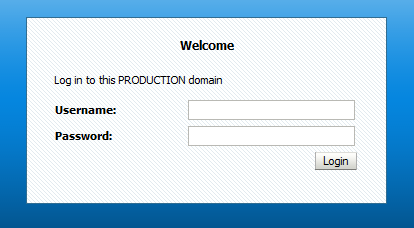
You can change the login page and some colors in the console itself to accentuate the production environment.
I tested this out on a Windows Server 2008 machine.
Normally, when you navigate to your Administration Console, you see this screen:

In the console itself, you have always a light blue toolbar (Home | Log Out | Preferences | ...) and after executing an action, you see thereunder a light gray message box:

Now, we will change a bit this layout.
(1)
Open a MS-DOS session and execute the setDomainEnv.cmd script from your domain.
(2)
Go to the templates directory for the console extensions:
cd %WL_HOME%\server\lib\console-ext\templates
Here, you will normally find 2 files:
build-new-laf.xml
laftemplate.zip
Execute this command to create an exploded format of your console extensions war-file:
ant -f build-new-laf.xml -Dname=myConsoleExt -Ddir=C:\myConsoleExt
(3)
In the WEB-INF subdirectory, create a classes directory, go to this new directory and create global.properties file by executing this command:
jar -xf %WL_HOME%\server\lib\consoleapp\webapp\WEB-INF\lib\console.jar global.properties
(4)
When you open this file in a text editor, you can see here all the labels, titles etc that are displayed in the console.
For the login page, for example, we want to change the subtitle of the login box from "Log in to work with the WebLogic Server domain" to "Log in to this PRODUCTION domain".
In the global.properties locate this line:
login.welcome2=Log in to work with the WebLogic Server domain
And change it to:
login.welcome2=Log in to this PRODUCTION domain
(5)
To change the colors in the console, we are going to modify a stylesheet.
Locate this stylesheet:
C:\myConsoleExt\css\content.css
In the ".toolbar"-tag, change the property value for "background-color" from "#D2E5F9" to "#FF0000".
In the ".messagesbox"-tag, change the property value for "background-color" from "#F6F6F6" to "#00FFFF".
(6)
Create a war from the exploded directory.
cd C:\myConsoleExt
jar -cf myConsoleExt.war *
And move the war-file to the console-ext directory of your domain:
move myConsoleExt.war %LONG_DOMAIN_HOME%\console-ext\
On the server restart the administration server.
When this is done, restart your browser or clean the browser history on the client pc.
(7)
Test now your new Administration Console look and feel!

You manage multiple development, test and production domains through their particular Administration Console. Although you defined all your domains in production mode, you notice that sometimes you make changes in the wrong console (e.g. development changes in a production environment) because of time pressure and a lack of attention by yourself. Oops... Well, another nice advice is to implement console extensions in your Administration Console, e.g. especially for the real production environments.
Solution
You can change the login page and some colors in the console itself to accentuate the production environment.
I tested this out on a Windows Server 2008 machine.
Normally, when you navigate to your Administration Console, you see this screen:
In the console itself, you have always a light blue toolbar (Home | Log Out | Preferences | ...) and after executing an action, you see thereunder a light gray message box:
Now, we will change a bit this layout.
(1)
Open a MS-DOS session and execute the setDomainEnv.cmd script from your domain.
(2)
Go to the templates directory for the console extensions:
cd %WL_HOME%\server\lib\console-ext\templates
Here, you will normally find 2 files:
build-new-laf.xml
laftemplate.zip
Execute this command to create an exploded format of your console extensions war-file:
ant -f build-new-laf.xml -Dname=myConsoleExt -Ddir=C:\myConsoleExt
(3)
In the WEB-INF subdirectory, create a classes directory, go to this new directory and create global.properties file by executing this command:
jar -xf %WL_HOME%\server\lib\consoleapp\webapp\WEB-INF\lib\console.jar global.properties
(4)
When you open this file in a text editor, you can see here all the labels, titles etc that are displayed in the console.
For the login page, for example, we want to change the subtitle of the login box from "Log in to work with the WebLogic Server domain" to "Log in to this PRODUCTION domain".
In the global.properties locate this line:
login.welcome2=Log in to work with the WebLogic Server domain
And change it to:
login.welcome2=Log in to this PRODUCTION domain
(5)
To change the colors in the console, we are going to modify a stylesheet.
Locate this stylesheet:
C:\myConsoleExt\css\content.css
In the ".toolbar"-tag, change the property value for "background-color" from "#D2E5F9" to "#FF0000".
In the ".messagesbox"-tag, change the property value for "background-color" from "#F6F6F6" to "#00FFFF".
(6)
Create a war from the exploded directory.
cd C:\myConsoleExt
jar -cf myConsoleExt.war *
And move the war-file to the console-ext directory of your domain:
move myConsoleExt.war %LONG_DOMAIN_HOME%\console-ext\
On the server restart the administration server.
When this is done, restart your browser or clean the browser history on the client pc.
(7)
Test now your new Administration Console look and feel!
Monday, January 5, 2015
Reports : Barcodes in a Windows Server Environment
The barcode font is not a default font on Windows.
The intention is that you first install this font on your server machine.
How can you install a font? Well, this is really simple on Windows. I tested my setup on Windows Server 2008 R2.
Just copy your ttf file(s) (downloaded from the www, or supplied by a third party) to the "C:\Windows\Fonts" directory and restart your server machine.
When this is done, you will see your barcode font(s) in Reports Builder.

And you can start using your barcode font type.
If you run afterwards your report, you will not see the desired output.
That's because you'll have to so some other additional modifications.
(1)
The default Fonts directory has to be added to the REPORTS_PATH variable.
If you work with reports environements, then go to the "Basic Configuration" section and add "C:\Windows\Fonts\" to the REPORTS_PATH variable:

(2)
In the "Forms/Reports Common Configuration", add the barcode font to the "PDF Subsetting":
 The data defined here are written to the "%INSTANCE_HOME%\config\FRComponent\frcommon\tools\COMMON\uifont.ali" file.
This file must be copied to the "%ORACLE_HOME%\tools\common\" directory.
Then, run your report and see that the barcode shows up correctly in your report:

The intention is that you first install this font on your server machine.
How can you install a font? Well, this is really simple on Windows. I tested my setup on Windows Server 2008 R2.
Just copy your ttf file(s) (downloaded from the www, or supplied by a third party) to the "C:\Windows\Fonts" directory and restart your server machine.
When this is done, you will see your barcode font(s) in Reports Builder.
And you can start using your barcode font type.
If you run afterwards your report, you will not see the desired output.
That's because you'll have to so some other additional modifications.
(1)
The default Fonts directory has to be added to the REPORTS_PATH variable.
If you work with reports environements, then go to the "Basic Configuration" section and add "C:\Windows\Fonts\" to the REPORTS_PATH variable:
(2)
In the "Forms/Reports Common Configuration", add the barcode font to the "PDF Subsetting":
This file must be copied to the "%ORACLE_HOME%\tools\common\" directory.
Then, run your report and see that the barcode shows up correctly in your report:
Friday, December 19, 2014
PacktPub eBook Bonanza
Interested in cheap IT-ebooks for the new year? Then, the PacktPub campaign is definitely something for you!
Check it out:
http://bit.ly/1w1Vkps
Read the press release here.
Check it out:
http://bit.ly/1w1Vkps
Read the press release here.
Saturday, December 13, 2014
WebLogic installation on a non-English server machine
I often install WebLogic environment for various companies. Most of them are using Oracle Linux, or other Linux variants, and a minority use MS Windows Server.
They are all installed in English, but last week I had a Wallonian customer that installed their Windows machine in French...
So, I installed their the WebLogic software and the ADF libraries and everything seemed to work fine:
no errors during installation and configuration, admin server started well.
But when starting the managed server, it generated a lot of these messages:
####<09-mai-2014 9 h 05 min 23 s CEST> <Error> <Socket> <CH1WL01> <AdfServer> <ExecuteThread: '0' for queue: 'weblogic.socket.Muxer'> <<WLS Kernel>> <> <3bef1877-e26f-4f29-b579-34da429a7b65-00000013> <1399619123679> <BEA-000403> <IOException occurred on socket: Socket[addr=/10.1.0.74,port=52704,localport=7003]
java.io.IOException: Une connexion établie a été abandonnée par un logiciel de votre ordinateur hôte.
java.io.IOException: Une connexion établie a été abandonnée par un logiciel de votre ordinateur hôte
at sun.nio.ch.SocketDispatcher.read0(Native Method)
at sun.nio.ch.SocketDispatcher.read(SocketDispatcher.java:43)
at sun.nio.ch.IOUtil.readIntoNativeBuffer(IOUtil.java:223)
at sun.nio.ch.IOUtil.read(IOUtil.java:197)
at sun.nio.ch.SocketChannelImpl.read(SocketChannelImpl.java:379)
at weblogic.socket.NIOSocketMuxer$NIOInputStream.read(NIOSocketMuxer.java:747)
at weblogic.socket.NIOSocketMuxer$NIOInputStream.read(NIOSocketMuxer.java:733)
at weblogic.socket.SocketMuxer.readFromSocket(SocketMuxer.java:1017)
at weblogic.socket.NIOSocketMuxer.readFromSocket(NIOSocketMuxer.java:642)
at weblogic.socket.SocketMuxer.readReadySocketOnce(SocketMuxer.java:951)
at weblogic.socket.SocketMuxer.readReadySocket(SocketMuxer.java:928)
at weblogic.socket.NIOSocketMuxer.process(NIOSocketMuxer.java:507)
at weblogic.socket.NIOSocketMuxer.processSockets(NIOSocketMuxer.java:473)
at weblogic.socket.SocketReaderRequest.run(SocketReaderRequest.java:30)
at weblogic.socket.SocketReaderRequest.execute(SocketReaderRequest.java:43)
at weblogic.kernel.ExecuteThread.execute(ExecuteThread.java:147)
at weblogic.kernel.ExecuteThread.run(ExecuteThread.java:119)
>
####<09-mai-2014 9 h 05 min 23 s CEST> <Error> <HTTP> <CH1WL01> <AdfServer> <ExecuteThread: '0' for queue: 'weblogic.socket.Muxer'> <<WLS Kernel>> <> <3bef1877-e26f-4f29-b579-34da429a7b65-00000013> <1399619123679> <BEA-101083> <Connection failure.
java.io.IOException: Une connexion établie a été abandonnée par un logiciel de votre ordinateur hôte
at sun.nio.ch.SocketDispatcher.read0(Native Method)
at sun.nio.ch.SocketDispatcher.read(SocketDispatcher.java:43)
at sun.nio.ch.IOUtil.readIntoNativeBuffer(IOUtil.java:223)
at sun.nio.ch.IOUtil.read(IOUtil.java:197)
at sun.nio.ch.SocketChannelImpl.read(SocketChannelImpl.java:379)
at weblogic.socket.NIOSocketMuxer$NIOInputStream.read(NIOSocketMuxer.java:747)
at weblogic.socket.NIOSocketMuxer$NIOInputStream.read(NIOSocketMuxer.java:733)
at weblogic.socket.SocketMuxer.readFromSocket(SocketMuxer.java:1017)
at weblogic.socket.NIOSocketMuxer.readFromSocket(NIOSocketMuxer.java:642)
at weblogic.socket.SocketMuxer.readReadySocketOnce(SocketMuxer.java:951)
at weblogic.socket.SocketMuxer.readReadySocket(SocketMuxer.java:928)
at weblogic.socket.NIOSocketMuxer.process(NIOSocketMuxer.java:507)
at weblogic.socket.NIOSocketMuxer.processSockets(NIOSocketMuxer.java:473)
at weblogic.socket.SocketReaderRequest.run(SocketReaderRequest.java:30)
at weblogic.socket.SocketReaderRequest.execute(SocketReaderRequest.java:43)
at weblogic.kernel.ExecuteThread.execute(ExecuteThread.java:147)
at weblogic.kernel.ExecuteThread.run(ExecuteThread.java:119)
>
And when deploying a test application on the server, it gave no response in my browser...
Fortunately, I found a patch on My Oracle Support to solve this.
I applied patch 18373180 (available for Oracle WebLogic 12c R2) through OPatch and did not encounter anymore this error...
They are all installed in English, but last week I had a Wallonian customer that installed their Windows machine in French...
So, I installed their the WebLogic software and the ADF libraries and everything seemed to work fine:
no errors during installation and configuration, admin server started well.
But when starting the managed server, it generated a lot of these messages:
####<09-mai-2014 9 h 05 min 23 s CEST> <Error> <Socket> <CH1WL01> <AdfServer> <ExecuteThread: '0' for queue: 'weblogic.socket.Muxer'> <<WLS Kernel>> <> <3bef1877-e26f-4f29-b579-34da429a7b65-00000013> <1399619123679> <BEA-000403> <IOException occurred on socket: Socket[addr=/10.1.0.74,port=52704,localport=7003]
java.io.IOException: Une connexion établie a été abandonnée par un logiciel de votre ordinateur hôte.
java.io.IOException: Une connexion établie a été abandonnée par un logiciel de votre ordinateur hôte
at sun.nio.ch.SocketDispatcher.read0(Native Method)
at sun.nio.ch.SocketDispatcher.read(SocketDispatcher.java:43)
at sun.nio.ch.IOUtil.readIntoNativeBuffer(IOUtil.java:223)
at sun.nio.ch.IOUtil.read(IOUtil.java:197)
at sun.nio.ch.SocketChannelImpl.read(SocketChannelImpl.java:379)
at weblogic.socket.NIOSocketMuxer$NIOInputStream.read(NIOSocketMuxer.java:747)
at weblogic.socket.NIOSocketMuxer$NIOInputStream.read(NIOSocketMuxer.java:733)
at weblogic.socket.SocketMuxer.readFromSocket(SocketMuxer.java:1017)
at weblogic.socket.NIOSocketMuxer.readFromSocket(NIOSocketMuxer.java:642)
at weblogic.socket.SocketMuxer.readReadySocketOnce(SocketMuxer.java:951)
at weblogic.socket.SocketMuxer.readReadySocket(SocketMuxer.java:928)
at weblogic.socket.NIOSocketMuxer.process(NIOSocketMuxer.java:507)
at weblogic.socket.NIOSocketMuxer.processSockets(NIOSocketMuxer.java:473)
at weblogic.socket.SocketReaderRequest.run(SocketReaderRequest.java:30)
at weblogic.socket.SocketReaderRequest.execute(SocketReaderRequest.java:43)
at weblogic.kernel.ExecuteThread.execute(ExecuteThread.java:147)
at weblogic.kernel.ExecuteThread.run(ExecuteThread.java:119)
>
####<09-mai-2014 9 h 05 min 23 s CEST> <Error> <HTTP> <CH1WL01> <AdfServer> <ExecuteThread: '0' for queue: 'weblogic.socket.Muxer'> <<WLS Kernel>> <> <3bef1877-e26f-4f29-b579-34da429a7b65-00000013> <1399619123679> <BEA-101083> <Connection failure.
java.io.IOException: Une connexion établie a été abandonnée par un logiciel de votre ordinateur hôte
at sun.nio.ch.SocketDispatcher.read0(Native Method)
at sun.nio.ch.SocketDispatcher.read(SocketDispatcher.java:43)
at sun.nio.ch.IOUtil.readIntoNativeBuffer(IOUtil.java:223)
at sun.nio.ch.IOUtil.read(IOUtil.java:197)
at sun.nio.ch.SocketChannelImpl.read(SocketChannelImpl.java:379)
at weblogic.socket.NIOSocketMuxer$NIOInputStream.read(NIOSocketMuxer.java:747)
at weblogic.socket.NIOSocketMuxer$NIOInputStream.read(NIOSocketMuxer.java:733)
at weblogic.socket.SocketMuxer.readFromSocket(SocketMuxer.java:1017)
at weblogic.socket.NIOSocketMuxer.readFromSocket(NIOSocketMuxer.java:642)
at weblogic.socket.SocketMuxer.readReadySocketOnce(SocketMuxer.java:951)
at weblogic.socket.SocketMuxer.readReadySocket(SocketMuxer.java:928)
at weblogic.socket.NIOSocketMuxer.process(NIOSocketMuxer.java:507)
at weblogic.socket.NIOSocketMuxer.processSockets(NIOSocketMuxer.java:473)
at weblogic.socket.SocketReaderRequest.run(SocketReaderRequest.java:30)
at weblogic.socket.SocketReaderRequest.execute(SocketReaderRequest.java:43)
at weblogic.kernel.ExecuteThread.execute(ExecuteThread.java:147)
at weblogic.kernel.ExecuteThread.run(ExecuteThread.java:119)
>
And when deploying a test application on the server, it gave no response in my browser...
Fortunately, I found a patch on My Oracle Support to solve this.
I applied patch 18373180 (available for Oracle WebLogic 12c R2) through OPatch and did not encounter anymore this error...
Review PacktPub : Oracle Solaris 11 Advanced Administration Cookbook
I was asked by Packt Publishing to review a brand new cookbook about Oracle Solaris 11 written by Alexandre Borges:
https://www.packtpub.com/hardware-and-creative/oracle-solaris-11-advanced-administration-cookbook
As a consultant, I notice that our customers prefer Oracle Linux over Solaris. But from time to time I do projects on Oracle Solaris. That implies that I am more an Oracle Linux expert than a Solaris expert, but despite of that I was very curious about this new book to extend my knowledge.
I must say, this book is really a recommendation for people with a base knowledge that want to dive deeper into Solaris.
From the very first chapter you notice that this book is written by an IT expert for IT experts: no extended prose, just the very rudimentary theory and a lot of exercises, explained step by step.
Alexandre tested all his exercises in Oracle VirtualBox, so it is quite easy to test out the labs he made. Unfortunately these days I don't have too much time to test it all out, but it is really one of my agenda topics for the next weeks.
Here is an overview of the chapters in the book:
(1) IPS and Boot Environments
(2) ZFS
(3) Networking
(4) Zones
(5) Playing with Oracle Solaris 11 Services
(6) Configuring and Using an Automated Installer (AI) Server
(7) Configuring and Administering RBAC and Least Privileges
(8) Administering and Monitoring Processes
(9) Configuring the Syslog and Monitoring Performance
Hint for Alexandre:
I guess there is still a small typo in the third chapter on top of page 161. The abbreviation of "External Network Modifier" is not "EMN" but "ENM".
https://www.packtpub.com/hardware-and-creative/oracle-solaris-11-advanced-administration-cookbook
As a consultant, I notice that our customers prefer Oracle Linux over Solaris. But from time to time I do projects on Oracle Solaris. That implies that I am more an Oracle Linux expert than a Solaris expert, but despite of that I was very curious about this new book to extend my knowledge.
I must say, this book is really a recommendation for people with a base knowledge that want to dive deeper into Solaris.
From the very first chapter you notice that this book is written by an IT expert for IT experts: no extended prose, just the very rudimentary theory and a lot of exercises, explained step by step.
Alexandre tested all his exercises in Oracle VirtualBox, so it is quite easy to test out the labs he made. Unfortunately these days I don't have too much time to test it all out, but it is really one of my agenda topics for the next weeks.
Here is an overview of the chapters in the book:
(1) IPS and Boot Environments
(2) ZFS
(3) Networking
(4) Zones
(5) Playing with Oracle Solaris 11 Services
(6) Configuring and Using an Automated Installer (AI) Server
(7) Configuring and Administering RBAC and Least Privileges
(8) Administering and Monitoring Processes
(9) Configuring the Syslog and Monitoring Performance
Hint for Alexandre:
I guess there is still a small typo in the third chapter on top of page 161. The abbreviation of "External Network Modifier" is not "EMN" but "ENM".
Thursday, December 11, 2014
WebLogic Server silent install
If you are not a fan of the GUI installer or if you have to install WLS on multiple instances, then the silent install mode is really interesting.
Note that there is a big difference in the install method between 11g and 12c.
In this post, I will explain the difference.
11g
In 11g, you must create a silent xml-file.
(1)
Create a xml file (e.g. silent.xml) with this content:
<?xml version="1.0" encoding="UTF-8"?>
<bea-installer>
<input-fields>
<data-value name="BEAHOME" value="/opt/oracle/Oracle/Middleware" />
<data-value name="WLS_INSTALL_DIR" value="/opt/oracle/Oracle/Middleware/wlserver_10.3" />
<data-value name="COMPONENT_PATHS" value="WebLogic Server/Core Application Server|WebLogic Server/Administration Console|WebLogic Server/Configuration Wizard and Upgrade Framework|WebLogic Server/Web 2.0 HTTP Pub-Sub Server|WebLogic Server/WebLogic SCA|WebLogic Server/WebLogic JDBC Drivers|WebLogic Server/Third Party JDBC Drivers|WebLogic Server/WebLogic Server Clients|WebLogic Server/WebLogic Web Server Plugins|WebLogic Server/UDDI and Xquery Support|WebLogic Server/Server Examples|WebLogic Server/Evaluation Database|Oracle Coherence/Coherence Product Files|Oracle Coherence/Coherence Examples" />
<data-value name="LOCAL_JVMS" value="/opt/jdk/jdk1.6.0_27" />
</input-fields>
</bea-installer>
(2)
Execute the (generic) installer in silent mode:
java -d64 -jar wls1035_generic.jar -mode=silent -silent_xml=silent.xml -log=silent.log
12c
12c does not work with a xml-file but with a response file which can be generated for the very first time by executing the GUI installer: when already passed some steps in the wizard, you can generate the response file by clicking on the "Save Response File" button in the "Installation Summary" screen.
If you really don't want to use the GUI installer, you can copy the content of the response file from here. :-)
(1)
Generate a response file with this content:
(2)
If this installation is the first Oracle installation on your system, then you must create as well the oraInst.loc file to define the directory and permission for the Oracle Inventory.
The user root has to create this file with this content:
inventory_loc=/u01/weblogic/OracleInventory
inst_group=oinstall
(3)
Execute the silent installer.
If this is the first installation:
java -jar /u01/software/fmw_12.1.3.0.0_wls.jar -silent -responseFile /u01/weblogic/wls12c.rsp -invPtrLoc /u01/weblogic/oraInst.loc
If you have already installed Oracle products:
java -jar /u01/software/fmw_12.1.3.0.0_wls.jar -silent -responseFile /u01/weblogic/wls12c.rsp
Note that there is a big difference in the install method between 11g and 12c.
In this post, I will explain the difference.
11g
In 11g, you must create a silent xml-file.
(1)
Create a xml file (e.g. silent.xml) with this content:
<?xml version="1.0" encoding="UTF-8"?>
<bea-installer>
<input-fields>
<data-value name="BEAHOME" value="/opt/oracle/Oracle/Middleware" />
<data-value name="WLS_INSTALL_DIR" value="/opt/oracle/Oracle/Middleware/wlserver_10.3" />
<data-value name="COMPONENT_PATHS" value="WebLogic Server/Core Application Server|WebLogic Server/Administration Console|WebLogic Server/Configuration Wizard and Upgrade Framework|WebLogic Server/Web 2.0 HTTP Pub-Sub Server|WebLogic Server/WebLogic SCA|WebLogic Server/WebLogic JDBC Drivers|WebLogic Server/Third Party JDBC Drivers|WebLogic Server/WebLogic Server Clients|WebLogic Server/WebLogic Web Server Plugins|WebLogic Server/UDDI and Xquery Support|WebLogic Server/Server Examples|WebLogic Server/Evaluation Database|Oracle Coherence/Coherence Product Files|Oracle Coherence/Coherence Examples" />
<data-value name="LOCAL_JVMS" value="/opt/jdk/jdk1.6.0_27" />
</input-fields>
</bea-installer>
(2)
Execute the (generic) installer in silent mode:
java -d64 -jar wls1035_generic.jar -mode=silent -silent_xml=silent.xml -log=silent.log
12c
12c does not work with a xml-file but with a response file which can be generated for the very first time by executing the GUI installer: when already passed some steps in the wizard, you can generate the response file by clicking on the "Save Response File" button in the "Installation Summary" screen.
If you really don't want to use the GUI installer, you can copy the content of the response file from here. :-)
(1)
Generate a response file with this content:
(2)
If this installation is the first Oracle installation on your system, then you must create as well the oraInst.loc file to define the directory and permission for the Oracle Inventory.
The user root has to create this file with this content:
inventory_loc=/u01/weblogic/OracleInventory
inst_group=oinstall
(3)
Execute the silent installer.
If this is the first installation:
java -jar /u01/software/fmw_12.1.3.0.0_wls.jar -silent -responseFile /u01/weblogic/wls12c.rsp -invPtrLoc /u01/weblogic/oraInst.loc
If you have already installed Oracle products:
java -jar /u01/software/fmw_12.1.3.0.0_wls.jar -silent -responseFile /u01/weblogic/wls12c.rsp
Subscribe to:
Posts (Atom)